You can do a lot with the iPhonemake a phone call, surf the Web, watch a moviejust with the touch of a virtual button. But dig a little deeper, and you can do a lot more. After three weeks of putting the iPhone through its paces, here are 21 tips for getting the most out of the iPhones advertised features or finding a couple of features you might not know were part of the phones repertoire. Look for more tips in the coming weeks, both at Macworld.com and our newiPhone Central blog.
1. Use your iPhone as a storage device
One of side benefits to the iPod beyond its music-playing capabilities is the fact that you can use it to store files. You cant do this with an out-of-the-box iPhone. But with the help of a $10 programand a Macyou can. The app isiPhoneDrive, a small utility from Ecamm Network that displays the free storage area of an iPhone in the manner of a Finder window in Column view. To add files to the iPhone, either click the Copy to iPhone button or drag a file or folder to the iPhoneDrive Window; dragging from the iPhone or clicking on Copy From iPhone puts iPhone files on your Mac. Note that music and photo files for use on your iPhone are off limits.CHRISTOPHER BREEN
2. Get a bigger keyboard for Web browsing
Like any other iPhone function requiring data entry, tapping Safaris address bar summons an on-screen keyboard. However, if you rotate the iPhone horizontallybeforetapping the address bar, the Safari window will switch to horizontal mode; then, when you then tap the address bar, the onscreen keyboard also appears horizontally. More important, it will also be much larger than the standard vertical keyboard, making data entry a little easier. By the way, Safari is currently the only iPhone application in which this horizontal keyboard appears. (Also worth noting: If you summon the keyboard before rotating your iPhone, then Safari wont rotate.)DAN FRAKES
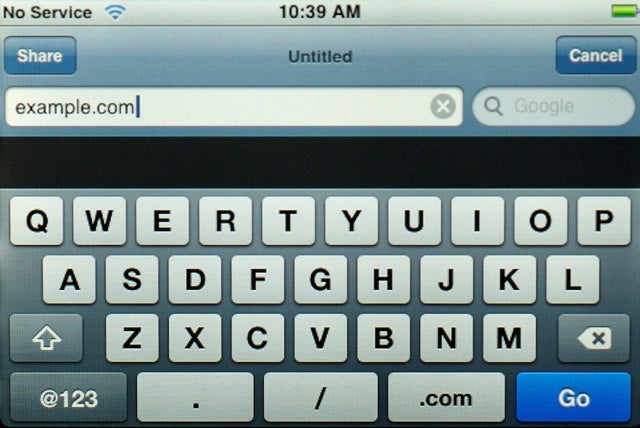 |
Rotating your iPhone horizontally before summoning the onscreen keyboard produces this horizontaland much easier to usekeyboard. |
3. Create a home page in Safari
With the regular version of Safari that runs on your Mac (and now your Windows-based PC), setting a particular site as your home page is as simple as going to the General tab in Preferences and typing in a URL. You cant do that on the iPhone, however. But you can use this work-around: Add your would-be home page to your bookmarks list and then move it to the top of your bookmarks list. Yes its an extra tapfirst the Bookmarks button and then the bookmark itselfbut it will get you to your favorite Web page with a minimum of fuss.DF
4. Share your URLs
If you want to send the URL of a Web page youre viewing to a friend, tap the Address Bar, then tap Share. A new e-mail message, containing the URL, will open in Mail; just choose a recipient(s), add any comments you want to include, and tap Send.DF
5. Scroll through separate boxes on a Web page
If you encounter a scrolling box or list when surfing Safari on your iPhonesay youre responding to a post at theMacworld.com forumsand try to scroll using your finger, youll find that the entire page scrolls, instead of just the box. The trick is to zoom in and scroll such areas withtwofingers.DF
6. Make a call from Safari
If you find a phone number in Safari that youd like to callsay the phone number at a restaurant youd like to make reservations attheres no need to jump to the phone component. Just tap the number; iPhone will dial it for you. (This is also the case with phone numbers and URL embedded in e-mails and SMS chats; tapping either one will place a call or open a Web page, respectively.)PHILIP MICHAELS
7. Find out where those links go
When in Safari, holding your fingertip down on a link instead of tapping it produces an information balloon that displays the underlying URL. The same thing happens in Mail when you hold a link, which makes this tipmuchmore useful. Now when those account update e-mails appear, you can press and hold on the link to find out if youre really going to be taken to the site the e-mail claims.DF
8. Avoid Mail confusion
Dont name two of your e-mail accounts with the same name, as Mail will get confused and copy the settings from one account to the other. And you cant fix the situation by simply renaming one account; youll need to delete one of the accounts and then recreate it.DF
9. Mark previously-read messages as unread
There doesnt appear to be a way to the mark a read message as unread on the iPhone, but its in there. While viewing a message, tap Details, which reveals a Mark As Unread option; tap it, and the next time you view your Inbox, the message will display the Unread indicator.DF
10. Recover lost e-mails
Say you try to send an e-mail, but the iPhone cant get network access. You might think your message has disappeared completely, but dont worryits still on your phone. A temporary Outgoing folder is created, and the message winds up in there. You can access this temporary folder from the main screen of the sending account; the folder will disappear once network access is available and the message is sent.DF
11. Create e-mail folders
Well, actually, you cant create e-mail folders on the iPhone. What you can do, however, with an IMAP e-mail account is create folders on the IMAP serverfor example, if you have a .Mac account, using the .Mac Web Mail interface. Those folders will then appear on the iPhone, and their contents willeventuallybe synced between the iPhone and the server.DF
12. Save e-mail messages as drafts
If you want to save a message youre working on so you can come back to it later, tap Cancel. Instead of deleting the message immediately, Mail pops up a dialog asking you to Save, Dont Save, or Cancel. Tap Save and the message is placed in your Drafts folder. If your account doesnt currently have a Drafts folder, Mail will create one. However, dont be alarmed if the message doesnt appear in Drafts immediately; in my testing, it takes a while to show up.DF
13. Pick where you listen to voicemail
If youve got a Bluetooth headset, incoming calls get routed there automaticallynot so when you call up Visual Voicemail. However, an Audio button on the Visual Voicemail screen lets you set where you listen to your message: the handset, the built-in speaker, or a Bluetooth headset.JIM DALRYMPLE
14. Find another way to scroll through Contacts
Everyone knows that you can scroll through the Contacts list on your iPhone two different wayseither flick your finger on the list to scroll up or down, or tap on one of the letters on the alphabet running down the right side of the screen to jump to contacts beginning with that letter. But there is a third way: hold your finger on the alphabetical list and then slide up and downyoull be able to scroll through your Contacts in a more controlled manner than by flicking your finger.JD
15. Use the Favorites and Recents list for more than just phone calls
Favorites and Recents are part of the main Phone screen; the former is iPhones version of frequently called numbers while the latter is a list of people who youve called and whose calls you missed. But this is not just a phone featureassuming the numbers in Favorites and Recents belong to a mobile phone, you can send them an SMS message. Just tap the > button next to the contact name or number and then tap the Text Message button at the bottom of the contact listing.DF
16. Save time in driving directions
One of the primary uses for the iPhones Map application is to get driving directions. Both the starting point and destination fields offer the Bookmarks button, so you can quickly use a bookmark, recent location, or contact when searching for directions. The first thing you should do in Maps is find your own address and then bookmark itthis will make finding directions to and from locations as easy as tapping your home bookmark.DF
 |
As with the iPod, the iPhone lets you set the speed of audiobook playback. |
17. Recreate some of the iPods audio controls
If you listen to an audiobook on an iPod, you probably know that, ever sincethe fourth-generation iPods release, you can alter the playback speed to make it go faster or slower as your preferences dictate. That feature makes its way over to the iPhone as well. Just tap Settings and then the iPod option; tap the Audiobook Speed entry and in the resulting screen, tap to choose among Slower, Normal, or Faster.
In fact, thats just one iPod feature that also appears on the iPhone. You can also use the Settings screen to turn on Sound Check (the feature that makes volume more consistent from one track to another) and change the EQ with 22 included equalization presets.CB
18. Change your iPod icons
By default, the icons on the bottom of the iPod screen are Playlists, Artists, Songs, Videos, and More. You can change those first four, just as you would the commands that appear on an iPods main screen. Simply tap the More icon and, in the More screen, tap the Edit button at the top-left of the screen. A Configure screen will wipe up from the bottom and display icons for Albums, Podcasts, Audiobooks, Genres, Composers, Compilations, Playlists, Artists, Songs, and Videos. To substitute one of these icons for one that appears at the bottom of the screen, just tap and hold on an icon and drag it over the icon you want to replace. Tap Done when youre done.CB
19. Say goodbye to already-viewed videos
Even owners of the largest-capacity iPhone might feel constrained by the 8GB limit when it comes to storing videos. A full-length motion picture takes up around 1GB of storage, which is a significant chunk of space for just one piece of media. To help ease the storage crunch however, the iPhone offers to delete videos after youve finished watching them; just tap a button andPirates of the Caribbeanwill disappear off your iPhone, freeing up more space.CB
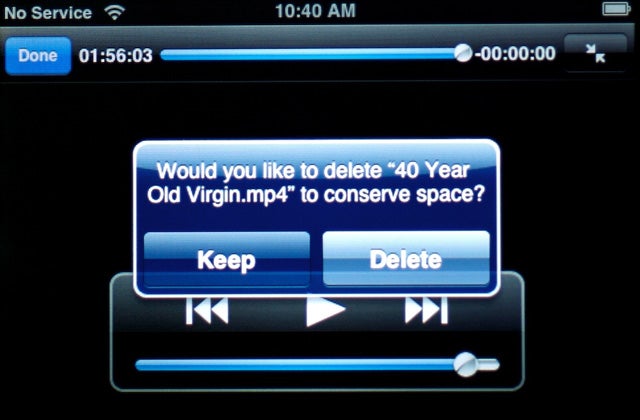 |
After you finish watching a movie, the iPhone will ask if you want to free up space by deleting it. |
20. Syncing notes with the iPhone
One of the major limitations to the iPhones Notes app is that you cant sync it with data from any application on your Mac. Theres a work-around, howevereach contact has a notes field. So create a fake contact and paste any info youd like to keep with you in the notes field for that contact in Address Book. One sync later, and all that info will be at your fingertips.JONATHAN SEFF
21. Rebooting your iPhone
Pretend for a moment that your iPhone suddenly becomes unresponsive. Pushing the Home button does nothing. Hitting the On/Off button produces the same discouraging result. What do you do? Apples first reset tip is to press and hold the Home button for about six seconds to quit any application that might have locked up your iPhone. If that doesnt work, trying pressing and holding both HomeandOn/Off; after about 10 seconds the Apple logo will appear. (This reboot trick takes a little big longer than the iPod equivalentholding down Select and Menu usually restarts your music player after four seconds.)CB

No comments:
Post a Comment